System design interview help on your own board
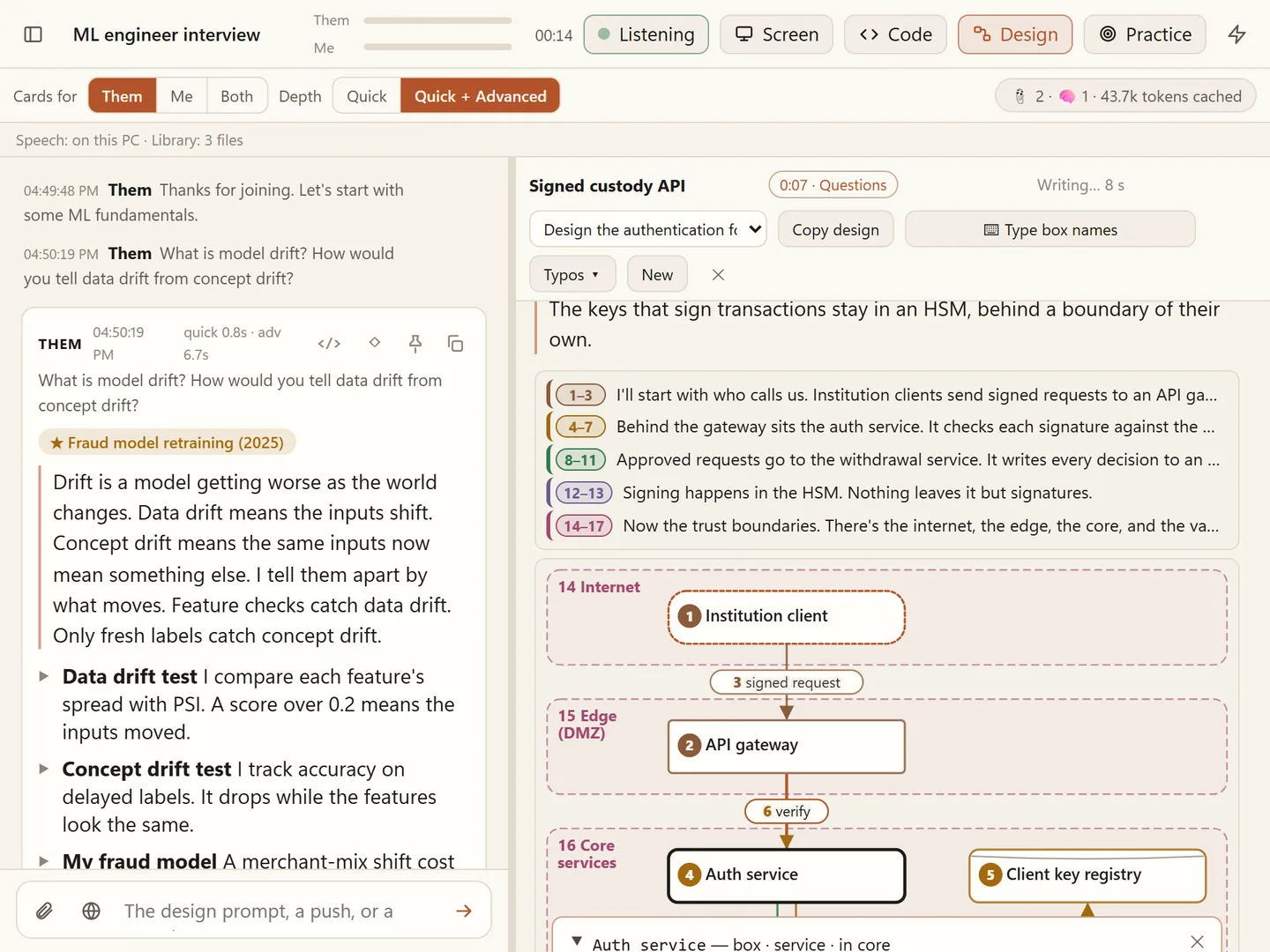
In a system design round, it’s easy to draw before you ask about scale, then stall at a new requirement. NextBeing lists the questions to ask, then draws the design in numbered steps for you to copy. When the interviewer adds a requirement, you get the change to accept or reject.
Windows 11 · Plans from $49 a month · 14-day money-back guarantee
On a phone? Email yourself the link for your PC.
 123
- 1The design in numbered boxes, so you draw it in the right order
- 2Open any box to see what it does and how it works
- 3One line to say for each step, so you explain as you draw
Why it helps
You ask before you draw
The first card lists the questions to ask, about the users, the scale and the limits. Each one is ticked once it’s answered, so you can see what is still open. You start the round by setting its limits instead of guessing them.
You know what to draw next
The design comes in 3 to 5 steps, every box numbered, each step with its line to say, so you draw one thing at a time.
A new requirement is a change, not a restart
When the interviewer says reads go up ten times, the change comes as a new version: the boxes to add and the line to say. Accept it or reject it. A change touches one to four parts, and the rest stays as you drew it.
How it works
- Click Design in a chat, and the board opens beside it.
- Type the prompt, or let the app hear the interviewer say it.
- Ask the questions on the first card before you start drawing.
- Draw the boxes in number order, and say each step’s line.
- Accept or reject the change when the interviewer adds a requirement.
- Click any box to see what it does, with example code.
Questions about system design interviews
Does it work with my whiteboard and call app?
Yes. It hears the call through your PC’s sound, so the call app doesn’t matter. You draw the boxes; the app can type their names into any open text field. It was tested on Excalidraw.
What does it see and hear?
It hears the call and your microphone after you click Listen. It sees your screen only when Screen is on. To write an answer, it sends the call’s text, your documents and screen images to our servers. Audio is never stored or sent.
What if the design is wrong?
Then you change it. Reject a change, or type in the chat what to fix, and a new version comes. Open a box first to see how it works before you draw it.
Does it work on a Mac?
Not yet. The Mac app is coming soon, for Macs with Apple silicon on macOS 15 or later. The Mac page shows how it will work and can email you the day it is out.
How do I practise a system design mock interview?
In Practice, pick Technical: design, and an AI interviewer poses a prompt out loud. Practice works anywhere. Use Live only where AI help is allowed, and check the interview’s rules first.
Is there a free trial?
No. The app is free to download and needs a plan to use. Your first payment is covered by a 14-day money-back guarantee.
What you can change
Four controls change the design itself and what the app does on your board.
Step by step: on Windows → · on a Mac →
More: Coding interview exercises · AI mock interviews · Live interview answers · Code typer · Answers from your resume